Skip to content
Nexcess.comServers.comLiquidWeb.com
Search our site for answers
Login
  • Help Docs
  • API Docs
  • liquidweb.com
  • Hosting Services
    • Cloud VPS Hosting
    • Dedicated Servers
    • GPU Hosting
    • Hosting For WordPress
    • Hosting For WooCommerce
    • Email Hosting
    • VMware Hosting
    • Add-ons
  • Security & Compliance
    • SSL Certificates
    • Firewalls
    • Cloud Hosting
    • Two Factor Authentication
    • DDoS Protection
    • Compliance
    • Malware Protection
  • Domain & DNS
    • Domain Registration
    • DNS Settings
    • Nameservers
    • Subdomains
    • Domain Forwarding
    • Email DNS Setup
  • Account & Billing
    • Account Setup
    • Payment Methods
    • Billing Cycles
    • Refunds Cancellations
    • Invoices Receipts
    • Account Security
  • Email Hosting
    • Email Setup
    • Email Forwarding
    • Spam Protection
    • Microsoft 365
    • G Suite Setup
    • Account Security
    • Email Troubleshooting
  • Performance & Optimization
    • Server Optimization
    • Caching Strategies
    • Content Delivery Network
    • Database Performance
    • Image Optimization
  • Server Administration
    • Server Setup
    • SSH Access
    • Command Line Basics
    • Database Management
    • CRON Jobs
    • Apache Nginx Setup
    • Log Analysis
  • CMS & Applications
    • WordPress
    • WooCommerce
    • Magento
    • Joomla
    • Drupal
  • Backups & Recovery
    • Backup Strategies
    • Cloud Backups
    • Disaster Recovery
    • Restoring Backups
    • Raid Configurations
  • Reseller & Partner Support
    • Reseller Program
    • White Label Hosting
    • Partner Portal
    • Client Management
  • Policies & Compliance
    • Terms Of Service
    • Privacy Policy
    • GDPR Compliance
    • Acceptable Use Policy
Help Docs Control Panel Guides The Ultimate Guide to the WHM Control Panel (2025) Changing Your Website IP Address in WHM

Changing Your Website IP Address in WHM

During migration, WHM typically updates website IP addresses automatically. But for sites requiring unique IPs for mail and other services, create an IP pool and manually update the site.
Account Control Panel WHM
3 min read

Normally, your website IP address will update automatically in WHM during the migration process. However, if you add additional sites and they need their own individual IP address for mail services and other applications, you can create an IP pool and then update the site manually.

Before you change your site’s IP address, you will need to add IP addresses in your server. You can do this either by creating a pool or by adding them individually. See our articles Creating an IP Pool for Your Cloud VPS and Adding IP Addresses Manually in WHM to find out how to add them.

Warning:

Changing an IP address because yours has been blacklisted is not best practice. Because of the way blacklists are tracked and monitored, it is best to rectify the situation by contacting the blacklist and following their removal procedures.
Upgrade to IPv6 VPS

Change Site IP in WHM

  1. Log in to your server’s WHM panel. (See Getting Started with WHM)
  2. Type “ip” into the search bar on the left hand side of the page.
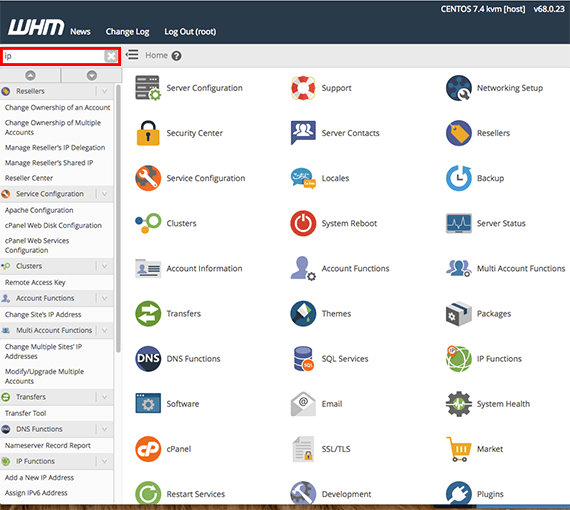
    ip in search bar highlighted
  3. The menu will show the Account Functions, you have two choices for changing IP addresses:
  • Changing the IP for a single site – click Change Site’s IP Address
  • Changing the IP for multiple sites – click Change Multiple Site’s IP Addresses
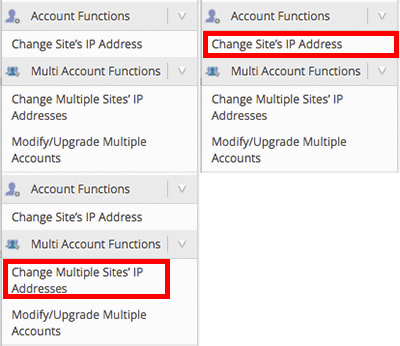
    gif showing ip address change options

Change IP For a Single Site

  1. Select Change Site’s IP Address from the menu on the left hand side of the page.
    change site's IP address link highlighted
  2. You will be directed to a page showing all the sites on your server. Select the site you want to change by clicking the radio button next to the site name.
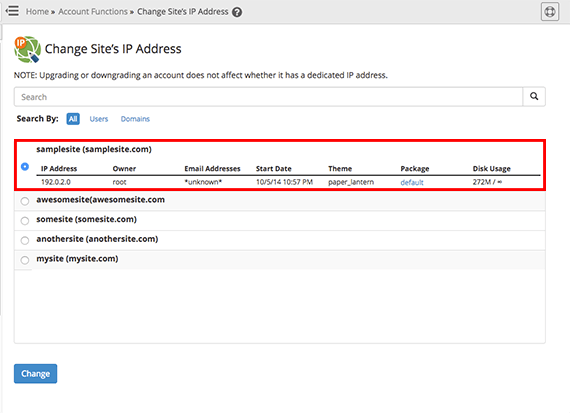
    radio button clicked and site IP listed highlighted
  3. From this page, click Change to be directed to the page to change your site’s IP address.
  4. From the Change Site’s IP Address home page, select the IP address from the drop-down menu under the site listed on the page.
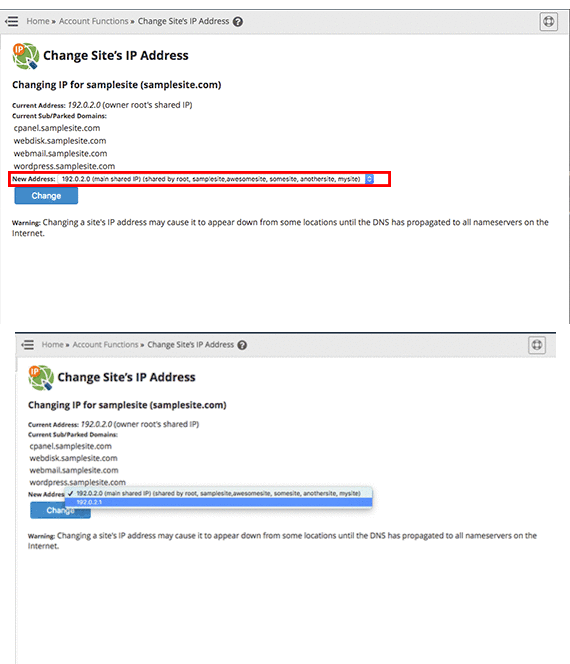
    gif showing drop down menu for IP address
  5. Click Change to change the IP address for the site you’ve selected.
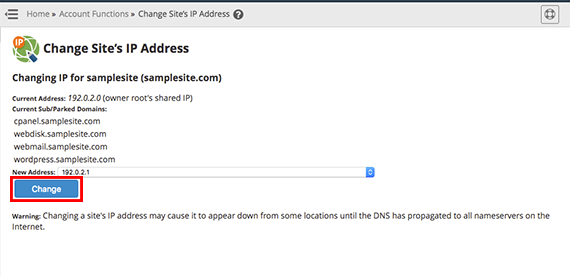
    change button highlighted
  6. Once the IP is changed, you will need to update the A Record wherever your DNS records are hosted. See our article Adding and Editing DNS Records to learn how.

Change IP For Multiple Sites

  1. Select Change Multiple Site’s IP Addresses from the menu on the left hand side of the page.
    change multiple site's IP addresses highlighted in menu
  2. You will be directed to a page showing all the sites on your server. Select the sites you want to change by clicking the box next to the site names, you can select all sites or just a few.
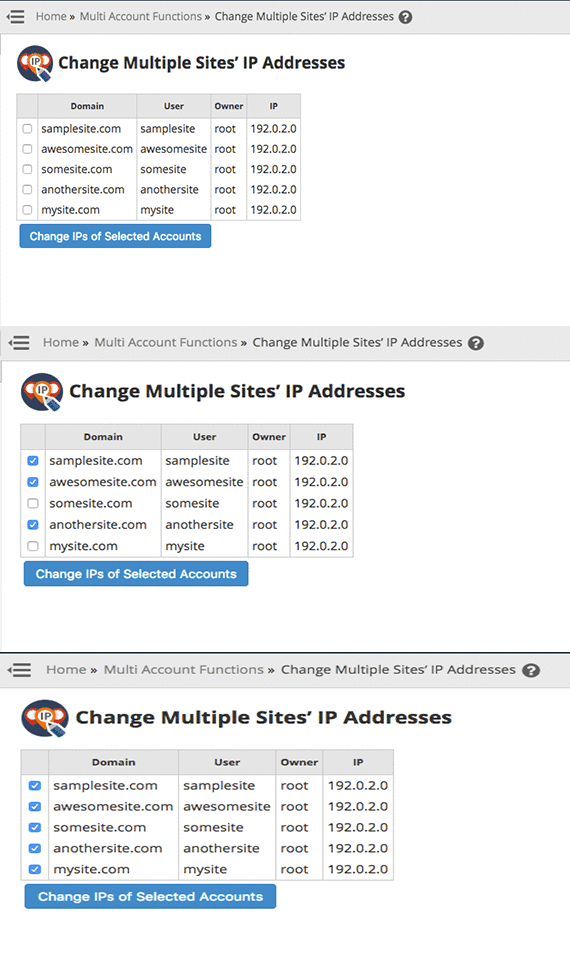
    gif showing selection options for sites
  3. Click Change IPs of Selected Accounts to open the page that will show your sites and select the IP address you’d like to assign to your sites.
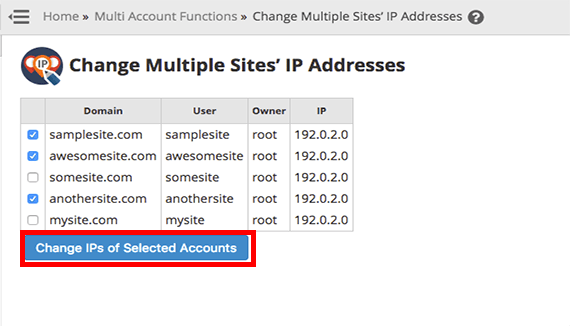
    change ips of selected accounts button highlighted
  4. Choose from the drop down menu for each site the new IP address you want to assign. Click Change IPs to update the IP address for that site.
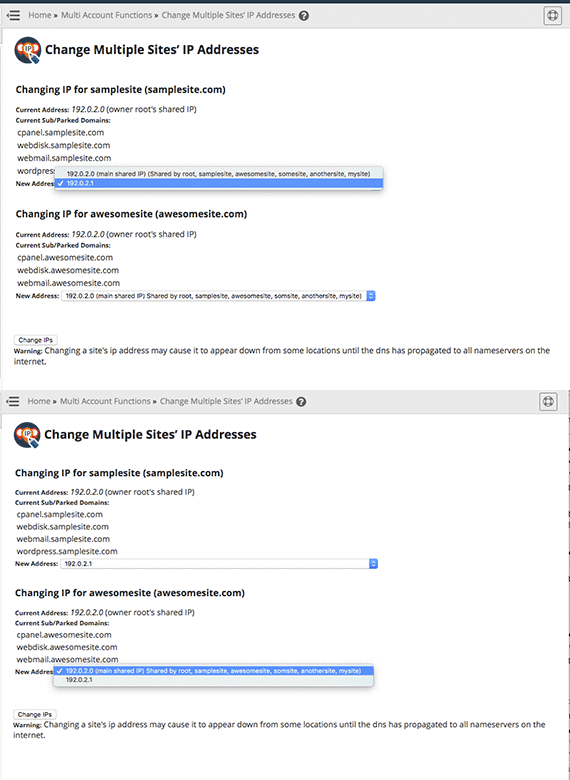
    gif showing drop down menu for both sites
  5. Once the IPs are changed, you will need to update the A Record wherever your DNS records are hosted. See our article Adding and Editing DNS Records to learn how.
Was this article helpful?
Thank you for your input.
Thank you for your feedback.
Table of Contents
  • Change Site IP in WHM
Get hosting news and tips straight to your inbox
Join our community today.
Loading form…
Essential hosting resources to help your business stay ahead
Get the guides
Related hosting content
  • What is a Dedicated IP Address? Things All…
  • Why is Your IP Blocked? Troubleshooting IP…
  • What is My IP Address? Check your Public IP

Solutions

Managed DedicatedCloud DedicatedManaged VPSWordPress ManagedManaged MagentoManaged WooCommerceSignature ServicesAdd-ons

Company

ContactAboutTerms of ServicePrivacy PolicyCustomer StoriesGlobal Cloud Platform

Resources

Help DocsResource CenterWeb Hosting ToolsSitemap

Partnerships

Hosting Affiliate ProgramPartner ProgramsRefer-a-Friend
HIPAA logo.
RedHat logo
cPanel and WHM certified.
SSAE-16 audit compliant hosting provider.
CCNA Cisco certified routing and switching for servers and hosting.
Microsoft Partner Silver Hosting.
AICPA service organization, SOC compliant.
2025 Best Performance and Reliability Award from HostAdvice.com.
Liquid Web reviewLiquid Web review
BBB Accredited Business logo with A+ rating.

©  Liquid Web, LLC by Nexcess Corp.

Privacy Policy

  • Solutions
  • VPS Hosting
  • Dedicated Servers
  • Managed Hosting
  • WordPress
  • GPU Hosting
  • Products
Log in
  • System status
  • Support | Get Help